It seams to be common place for others to get confused by what should be a
relatively simple operation. I'm also hoping that this will also reduce a
lot of 'common questions' that are asked frequently because of the lack of
knowledge on how to use the 'search'. So Here Goes!....
First Things First - Always start from the Forum Home Page.
( That's The Button Marked 'Home'
 )
)
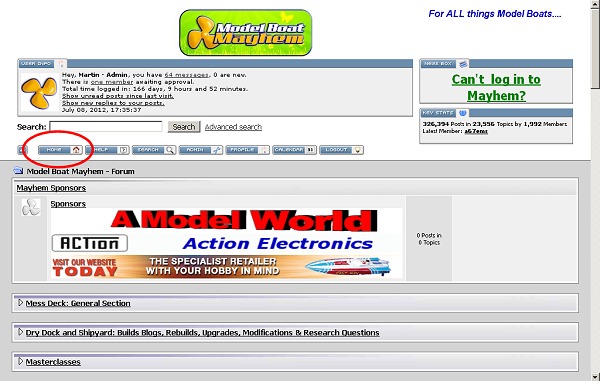
Next Up A Basic Search.
Now Your On The Home Page You will See a 'Search Box' Above The
Home Button.
In This Box You Should Type A Keyword Or Words Your Looking For So Example
May Be Fittings or Brass Fittings
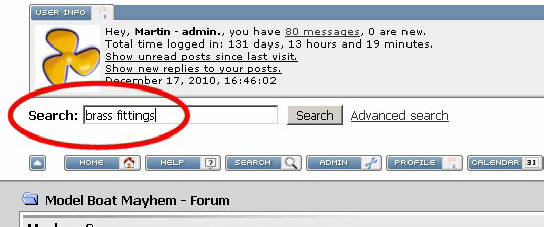
Now Once You Have Entered The Key Words Your Looking For In The Search Box
...
Click The 'Search Button'
Next To The
Search Box
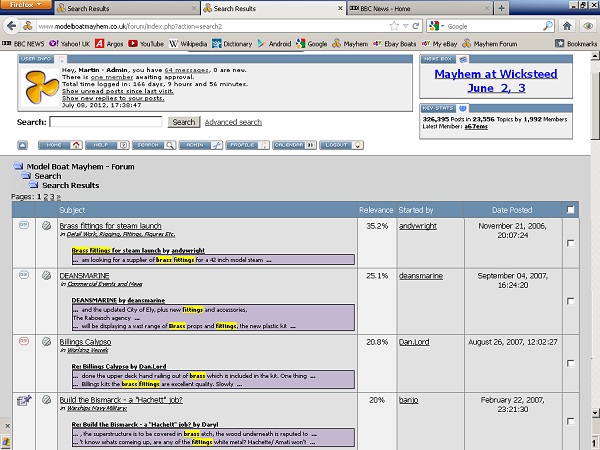
Now If You Did It Right You Should Get A List Of Topics With The Keyword(s)
Highlighted In
Yellow.
To The Right Hand Side It Will
Show The 'Relevance' In A %, Date & By Author This Should Help You Narrow
Down Your Search, But All The Topic's Will Have Some Relevance But Many
Will Just Have The Word Your Searching For, Its Up To You To Read Through
And Decide If That's What You Were Searching For By Opening Each Topic.
Tip 1 - Do
Not 'Search' While Already In A Topic,
Any Keywords Will Be Searched Within That Topic! However It Is Handy If
The Topic Is Very Long To Track Down A Particular Area You Wish to Read,
Commonly This Is What Happens With Member's Who Are Not Familiar With The
Search Facility Using The Search While Already In A Topic, Leading To The
Common Place Confusion!
Tip 2 - Use "Boolean algorithms!"
"brass fittings" ____will return only results
with "Brass fittings" consecutively.
brass +fittings -propeller ___will return only results with
bras & fittings but not propeller.
(
Also see:
http://support.google.com/websearch/bin/answer.py?hl=en&answer=136861
)
Using 'ADVANCED SEARCH'
( You can use as many or few of the following options as you like!
)
Using The Advanced Search Is Much
The Same As Using The Normal Facility, But Will Allow For A More In Depth
Search.
You Should Start At The Home Page As
Normal.
This Time You Will Want To Click On The Underlined Text
'Advanced Search' Which
By Now You Should Have Spotted Is By The Search Button.
Upon Clicking In The 'Advanced
Search' Words You Will Be Redirected To A New Page That Looks Like
This...

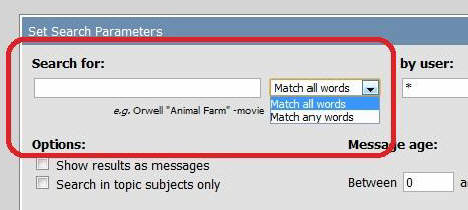
On This Page You Have Quite A Few 'Search Criteria'
The first Being 'Search For' Which Act's The same Way As A Normal Search
But You Also Have The Option To Select Between Matching 'All Words'
Or 'Any words' Using The Drop Down Selector To Its Right
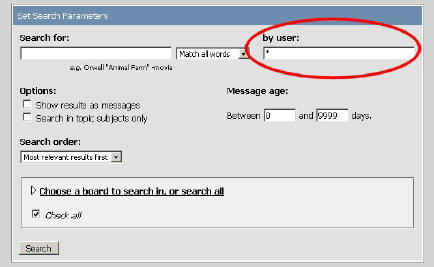
Option 1
Next To The Search Box On The Right Is Also The Option To Search Via a
Forum User Name.
This Allows You To Search For 'keywords' Written By A Particular User.
Option 2
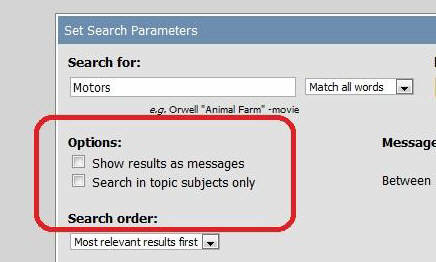
Under That You Have The Options To 'Show The Results As Messages'
And 'Search In Topic Subjects Only' (Which Means The Topics Title
Not The Topics Text Body)
Click The Boxes That Apply To Your Search.
Option 3
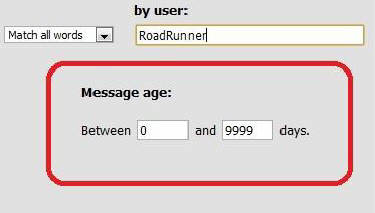
Next To The Right Of The Tick Boxes Is An Age Search this allows You to
Search Over A Period Of Time 9999 Being The Beginning Of The Forums Life
Just Enter How Many Days Old You Think The Topic Is Between.
Generally You Would Leave This As Its Pre-set To Maximise Your Search
Potential.
Option 4
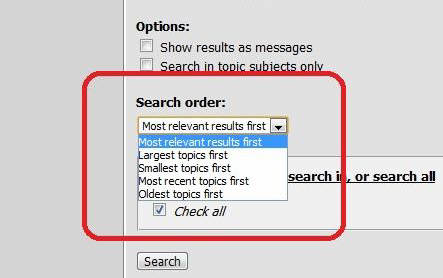
Next Up Is A Results Display Order, By Using The Drop Down You Can Select
The Order In Which Search Results Will Be Displayed, Its Self Explanatory
At This Point.
Lastly Before Hitting That Magic Search Button Is Where To Search!, The
Default Mode Set Is 'All' Which Is Displayed As A Tick Box Marked 'Check
All'
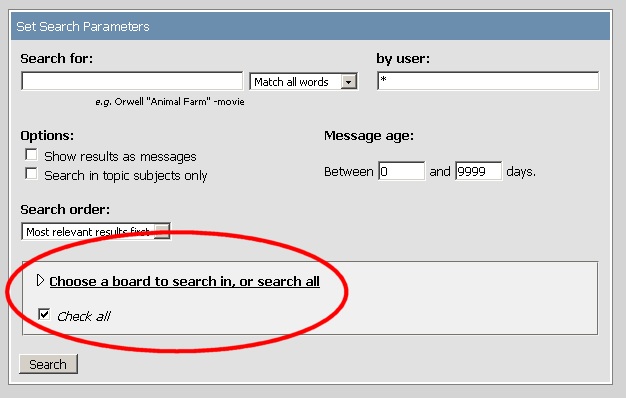
However You Are Able To Select A Section Or Sections In Which You
Wish Your Search To Take Place, TO Aid In Narrowing Down The Relevance;
To
Do This You Click The > Arrow Next To The Words Marked
Choose a board to search in, or
search all
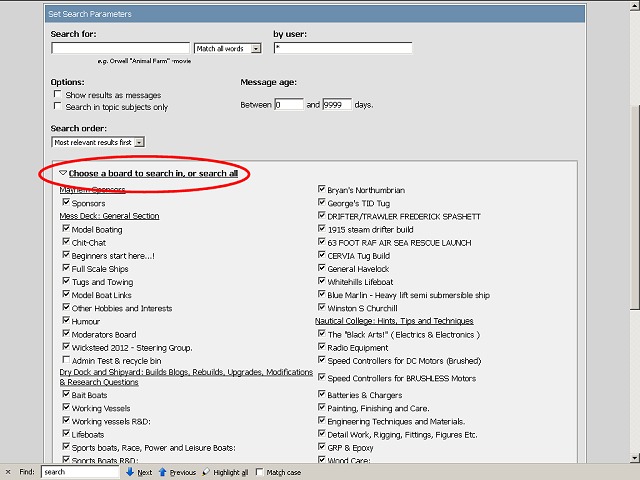
In Pressing That Arrow It Will Bring A Rather Large Drop Down With All The
Forums Topic Sections Each With There Own Tick Box.
Each Topic Section Has A Tick Box , If It Is Ticked By The Topic The
Search Will Take Place In That Section Or Sections.
If It Is Un-ticked It Will Not Search In That Section, Use Your Mouse To
Select The Section Or Sections You Wish To Search By Clicking On The Boxes
To Tick Or Un-Tick them.
Now You Have Done All That Hit The [ Search ]
Button Below (Bottom Left) And
Look Through The Results! Now You DO NOT Have To fill In Every Detail
Within The Advanced Search But The More You Enter The Better The Outcome
Generally.
Well I Hope This Helped In Some Way If There Are Any Incorrect Parts
Please Post The Correct Way Of Doing It, I Have Been Known To Get It Wrong
On Occasions!
http://www.modelboatmayhem.co.uk/forum/index.php?topic=27818.msg273336#msg273336
Roadrunner & Martin

|